Introduction to Kubernetes
In this section we give an overview of the Kubernetes (k8s) system and test to see whether the kubectl CLI is configured correctly to allow us to interact with the cluster
After going through this module, students should be able to:
Issue basic commands using
kubectlConnect to the class Kubernetes cluster and
Design Principles. Kubernetes improves our software portability, particularly for large distributed applications that need to run across multiple machines
Kubernetes Overview
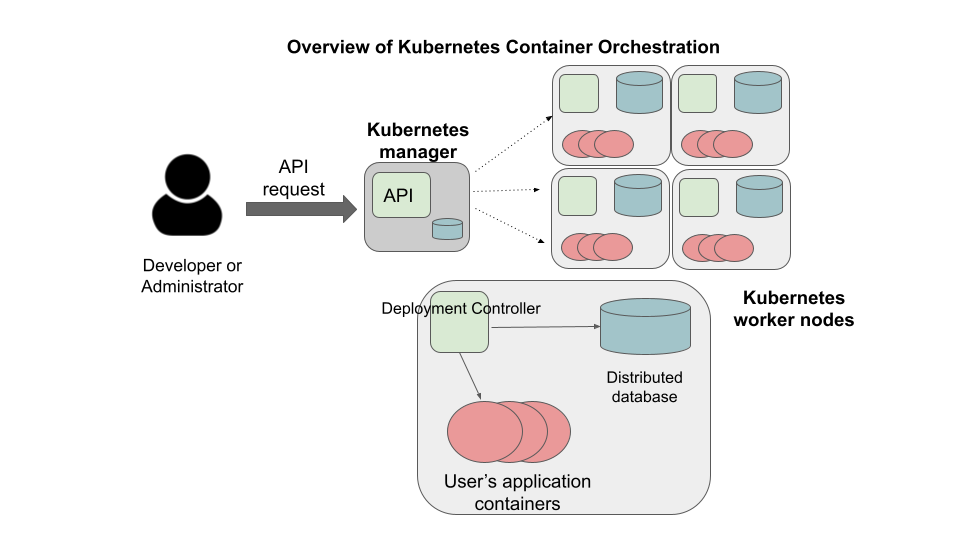
Kubernetes (k8s) is itself a distributed system of software components that run a cluster of one or more machines (physical computers or virtual machines). Each machine in a k8s cluster is either a “manager” or a “worker” node.
Users communicate with k8s by making requests to its API. The following steps outline how Kubernetes works at a high level:
Requests to k8s API describe the user’s desired state on the cluster; for example, the desire that 3 containers of a certain image are running.
The k8s API schedules new containers to run on one or more worker nodes.
After the containers are started, the Kubernetes deployment controller, installed on each worker node, monitors the containers on the node.
The k8s components, including the API and the deployment controllers, maintain both the desired state and the actual state in a distributed database. The components continuously coordinate together to make the actual state converge to the desired state.
Note
It is important to note that most of the time, the k8s API as well as the worker nodes are running on separate machines from the machine we use to interact with k8s (i.e., make API requests to it). The machine we use to interact with k8s only needs to have the k8s client tools installed, and in fact, as the k8s API is available over HTTP, we don’t strictly speaking require the tools – we could use curl or some other http client – but the tools make interacting with the API much easier.
Connecting to the TACC Kubernetes Instance
In this class, we will use a Kubernetes cluster running at TACC that we have created for use in this class
for deploying our applications. To simplify the process
of accessing the Kubernetes cluster, we have enabled connectivity to it from the student-login host.
Therefore, any time you want to work with k8s, simply SSH to student-login with your TACC username as you have throughout the
semester and then issue your kubectl commands
[local] $ ssh username@student-login.tacc.utexas.edu
coe332-vm $ ...do kubernetes work...
This machine has Kubernetes tools installed on it and has access to the Kubernetes API
for the cluster, but you should be aware that this server is not part of the Kubernetes cluster itself.
Note that it will require careful organization and work to keep files in sync between the student-login host and
your Jetstream VM.
First Commands with k8s
We will use the Kubernetes Command Line Interface (CLI) referred to as “kubectl” (pronounced “Kube control”) to make
requests to the Kubernetes API. We could use any HTTP client, including a command-line client such as curl, but kubectl
simplifies the process of formatting requests.
The kubectl software should already be installed and configured to use the Freetail K8s cluster. Let’s verify that
is the case by running the following:
coe332-vm$ kubectl version -o yaml
You should see output similar to the following:
clientVersion:
  buildDate: "2023-12-19T13:42:57Z"
  compiler: gc
  gitCommit: 506050d61cf291218dfbd41ac93913945c9aa0da
  gitTreeState: clean
  gitVersion: v1.28.5
  goVersion: go1.20.12
  major: "1"
  minor: "28"
  platform: linux/amd64
kustomizeVersion: v5.0.4-0.20230601165947-6ce0bf390ce3
serverVersion:
  buildDate: "2023-12-19T13:32:53Z"
  compiler: gc
  gitCommit: 506050d61cf291218dfbd41ac93913945c9aa0da
  gitTreeState: clean
  gitVersion: v1.28.5
  goVersion: go1.20.12
  major: "1"
  minor: "28"
  platform: linux/amd64
This command made an API request to the TACC k8s cluster and returned information about the version
of k8s running there (under serverVersion) as well as the version of the kubectl that we are running (under
clientVersion).
Note
The output of the kubectl command was yaml because we used the -o yaml flag. We could have asked for the output
to be formatted in json with -o json. The -o flag is widely available on kubectl commands.
Authentication and Namespaces in Kubernetes
Before we can do any real work on the Kubernetes cluster, we need to understand the concept of a namespace. In Kubernetes, a namespace is a logical partition of objects defined on the cluster, and different users can have different levels of access (including no access at all) to different namespaces. In this way, Kubernetes supports launching different applications – even different applications owned by different users or organizations – on the same physical cluster in an isolated way from each other. Each different user or organization would be assigned a different namespace where their k8s objects would live, and users wouldn’t have access to any other namespace.
That is how the class Kubernetes cluster has been set up. Each of you has been assigned your own namespace in the Kubernetes cluster where you have administrative access. Inside that namespace, you can create and manage the Kubernetes objects for your application. And while all of the Kubernetes objects for every student is running on the same cluster, you won’t see or have access to the objects in different namespaces.
We haven’t introduced pods yet – we will shortly – but let’s try a simple experiment: issue the following command
coe332-vm$ kubectl get pods
You will get a response like the following:
No resources found in USERNAME namespace
Your kubectl client is configured to make requests in your private namespace, so it is only looking
for pods running on the cluster within your namespace. There may be many other pods currently running
on the cluster, you just do not have access to see them.
Try the following experiment. Specify a different namespace directly on the
command line using the --namespace argument. Provide a namespace (e.g. wallen) that you would not expect
to have access to:
coe332-vm$ kubectl get pods --namespace=wallen
The response might look like:
Error from server (Forbidden): pods is forbidden: User "system:serviceaccount:USERNAME:USERNAME"
cannot list resource "pods" in API group "" in the namespace "wallen"
This is the output we expect because we would not have access to that user’s pods.
To see more information about how k8s and the kubectl CLI is configured in your environment,
inspect the file located at ~/.kube/config.
To install the k8s CLI on your Jetstream instance, log in to Jetstream and issue the following commands (replacing USERNAME with your username):
[coe332-vm]$ sudo curl -LO "https://dl.k8s.io/release/v1.28.5/bin/linux/amd64/kubectl"
[coe332-vm]$ sudo install -o root -g root -m 0755 kubectl /usr/local/bin/kubectl
[coe332-vm]$ scp -r USERNAME@student-login.tacc.utexas.edu:~/.kube ./
To confirm whether it worked, try the following commands:
[coe332-vm]$ kubectl version --client
Client Version: v1.28.5
Kustomize Version: v5.0.4-0.20230601165947-6ce0bf390ce3
[coe332-vm]$ kubectl get pods
No resources found in USERNAME namespace.